
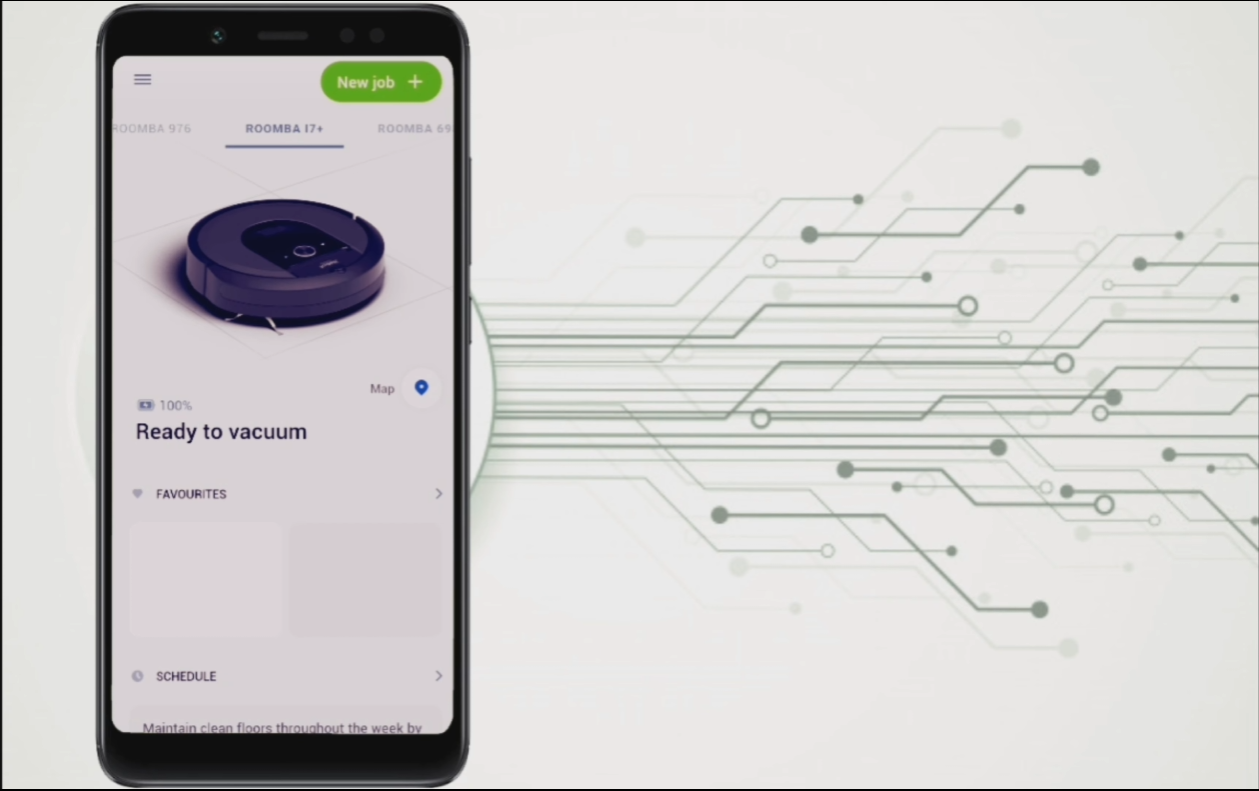
Roomba error 15 means an internal navigational error in your vacuum. It appears due to miscommunication with the iRobot home app or Home Base. Let’s see how you can fix Roomba Error 15.
Note: Error 15 and Charging Error 15 are two different issues. This guide is about Error 15.
Fix Roomba Error 15 in 7 Easy Steps
1. Press the “Clean” Button
Press the clean button located at the center of the device. You don’t have to hold the button; just press it once, and it will fix error 15.

2. Force Close the iRobot Home App
Error 15 is mostly displayed after the app encounters a problem. You can force-stop the app to fix error 15. Follow your device’s usual procedure to force close the Roomba app.

3. Reboot the Roomba
Rebooting e, 500, 600 (regular and WiFi-enabled), and WiFi-enabled 800 series
Press and hold the “Spot Clean” and “Home” buttons together for at least 10 seconds. Release the buttons when you hear a rebooting beep.
Rebooting 700, 800, 900 series
Press and hold the “Clean” button for at least 10 seconds. You will hear a beep indicating rebooting.
Rebooting i and s series
Press and hold the “Clean” button for 20 seconds. The ring light turns white and moves in a clockwise direction. When this light shuts off, it indicates that your vacuum is rebooted now. In s series, this light is around the bin lid. Wait for 1-2 minutes before turning on your Roomba again.
4. Revert “Smart Maps” to the Previous Version
After rebooting, if error 15 still appears, then you should try reverting your Smart maps. Your vacuum will work smoothly after you revert the map to its previous version. Your Roomba device is familiar with the previous map, making it easier to navigate.
You can revert your Roomba Smart Map to its previous version by following the below-mentioned steps.
- Go to the history on the iRobot app
- Check the clean maps report
- Select your desired previous map
- Click the overflow menu that is present in the top right corner
- Select update smart maps

5. Delete the Existing Maps
If Roomba error 15 persists, there is a chance of error in the maps. So, to fix this issue, you can remap your home. Before remapping, you should delete the previous maps first. You can delete the maps in the following steps.
- Go to the maps on the iRobot home app
- Select the map from the app
- Press three horizontal dots icon on the map
- Click delete to remove the map
Remove all the maps one by one. Deleting the maps also removes the generic bugs and system glitches. Reset your Roomba device after deleting the maps.
6. Remap Your House
Remapping will allow your Roomba to understand and recognize your home layout again. You can remap your house in the following easy steps.
- Place the Roomba in its home base.
- Press the clean button.
- Allow your Roomba to navigate your room.
- After navigation, rename the new map. (You can rename a new map only in those Roomba models that have the “Smart Maps” option)
Continue these steps for your entire house or the areas your want Roomba to clean. Keep the doors open, wipe the floors and remove any obstacles that may hinder Roomba’s movement.
7. Reset your Roomba to Factory Settings
Resetting works when everything else fails to remove error 15. Please note that resetting removes all the data from your vacuum cleaner.
Factory Reset by iRobot Home App
- Go to settings in app.
- Press factory reset/remove.
- Do not close the app during the resetting process, connect Roomba and Home Base to same Wi-Fi network.

Factory Reset using buttons
For the s and i series: Press and hold the home, spot clean, and clean buttons until you see the light ring move in white.
For the j series: Remove the dust bin from the device. Press and hold the clean button for seven seconds. You will hear a tone. Once you hear that tone, press the “Clean” button again.
For e series: Press and hold the spot clean, home, and clean buttons for 20 seconds to factory reset s series Roomba models.
For 900 series: Press and hold the spot clean, dock, and clean buttons until the LED lights start illuminating.
For 600 and 800 series (WiFi enabled): Press and hold the spot clean, dock, and clean”buttons until you hear a beep.
Other Famous Error Codes on Roomba:


Leave a Reply